How to Enable Unknown Sources on Android for Filmora Mod APK
If you want to install Filmora Mod APK on your Android phone, you first need to enable Unknown Sources. Android blocks apps that don’t come from the Play Store by default. This guide shows you how to turn that setting on safely.
Why Android Blocks Unknown Apps
Google adds this restriction to protect users from harmful apps. Any app installed outside the Play Store is treated as “unknown.” This includes modded apps like Filmora Mod APK. Turning on Unknown Sources doesn’t harm your phone. It just permits you to install files you trust.
The setting changed: there is no single ‘Unknown sources’ switch anymore
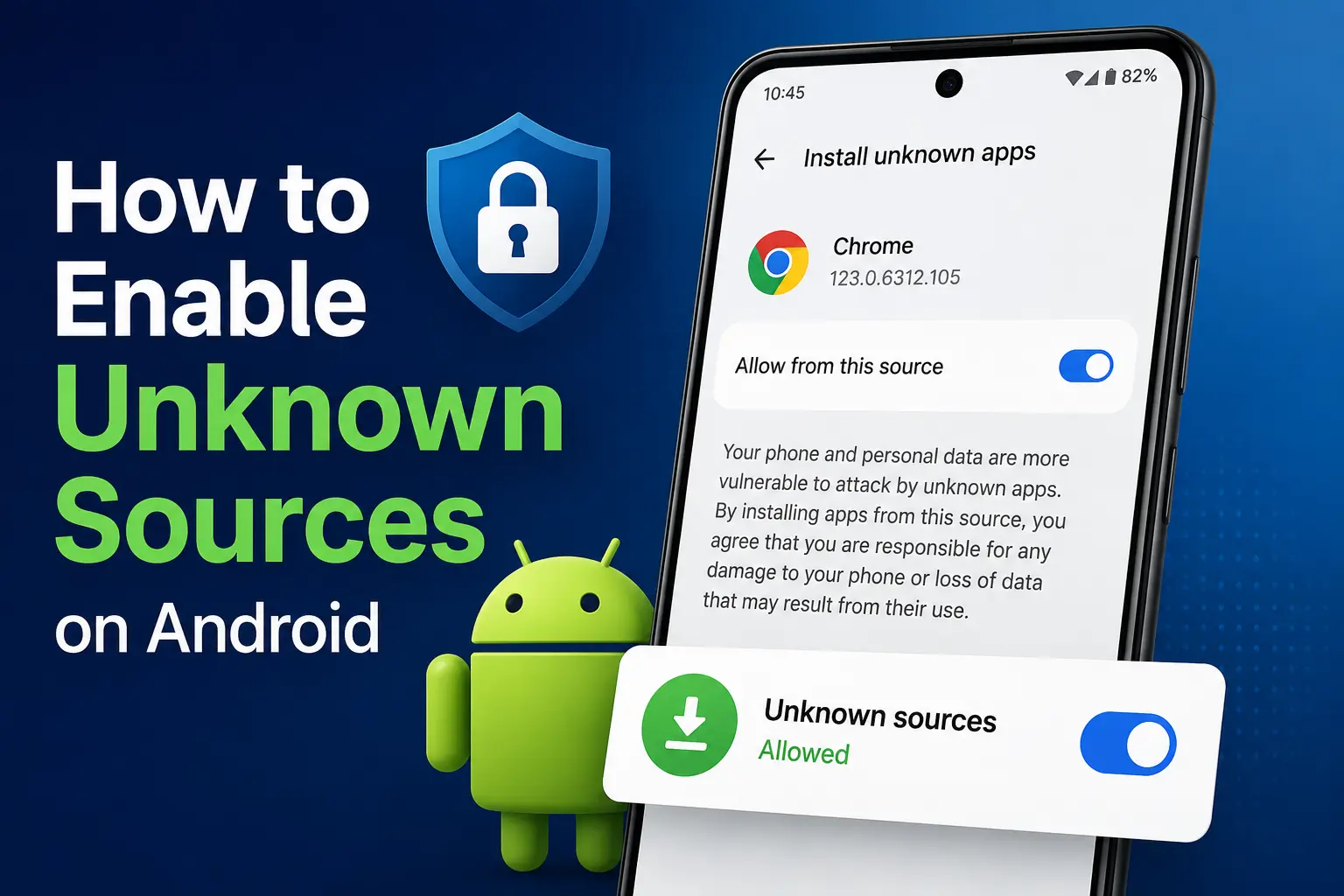
If a guide tells you to flip one global ‘Unknown sources’ switch, it is describing an old Android. That single device-wide toggle existed up to Android 7. Since Android 8 (2017), the permission belongs to the individual app doing the installing: you allow Chrome, or your file manager, or WhatsApp to install APKs — one app at a time. This is the cause of the most common failure we see: a user enables the permission, taps the APK, and gets blocked anyway — because they granted it to a different app than the one that opened the file. Grant it to the app you will actually open the APK with, and the block disappears.
Enable Unknown Sources on Android 8 and Above
Most phones today run Android 8 or newer. On these versions, the setting is app-specific, not a single global switch.
- Open Settings on your phone.
- Go to Apps or Apps & Notifications.
- Tap Special App Access (or Advanced, depending on your brand).
- Select Install Unknown Apps.
- Choose the browser or file manager you’ll use to install the APK.
- Turn on Allow from this source.
Once done, you can open your downloaded APK file and install it without a warning blocking you.
Enable Unknown Sources on Android 7 and Below
Older Android versions use one global toggle instead.
- Open Settings.
- Tap Security.
- Find Unknown Sources.
- Turn the switch on.
- Confirm if a warning pop-up appears.
This setting applies to your whole device, not just one app.
Enable Unknown Sources on Samsung Phones
Samsung devices sometimes hide this setting under a different menu.
- Open Settings.
- Tap Biometrics and Security.
- Scroll to Install Unknown Apps.
- Pick your browser or file manager.
- Turn on the toggle.
Samsung’s extra wall: Auto Blocker. On newer Galaxy phones (One UI 6 and later), Samsung adds a second blocker on top of Android’s own. Auto Blocker can refuse a sideload install completely — even when the per-app permission above is granted. If your Galaxy blocks the install mentioning Auto Blocker, open Settings → Security and privacy → Auto Blocker and switch it off while you install; you can switch it back on afterwards. On current One UI versions the Install unknown apps list itself also lives at Settings → Security and privacy → More security settings → Install unknown apps. This Auto Blocker step is the one most Samsung users miss.
Xiaomi, Redmi and Poco: the countdown is normal
On Xiaomi phones (MIUI and HyperOS), the permission and install screens add a security countdown: the Allow button stays grey for several seconds while a timer runs. It is not a freeze and not an error — wait it out and the button activates. Some Xiaomi builds also show a ‘scanning’ pause before the install button appears, for the same reason. If you install from a PC instead, Xiaomi additionally asks for ‘Install via USB’ inside Developer options.
Two newer Android changes that confuse everyone
Restricted settings (Android 13 and later). After you sideload an app, Android may grey out its Accessibility and notification-access permissions. That is a deliberate protection for sideloaded apps. If an app you trust genuinely needs one of those permissions, open Settings → Apps → the app → the ⋮ menu → ‘Allow restricted settings’ and confirm with your PIN. A video editor does not need either permission — if one demands accessibility access, treat that as a warning sign, not a setup step.
Android 14 refuses very old apps. Android 14 and later will not install apps built for Android versions older than 6.0, and the failure looks like a plain ‘App not installed’. Current Filmora builds are unaffected — they target modern Android — but this is why an ancient APK from an old forum post simply refuses to install on a new phone.
Is It Safe to Enable Unknown Sources for Filmora Mod APK?
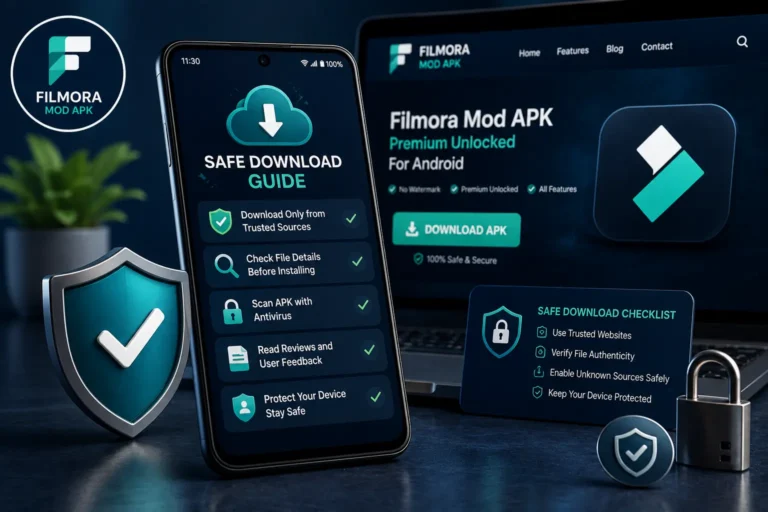
Yes, as long as you only install files from sources you trust. The setting itself is not dangerous. The risk comes from the file you choose to install. Always download modded apps like Filmora Mod APK from a reliable source, and follow our Safe Download Checklist before installing anything.
Should You Turn It Off After Installing?
You don’t have to, but it’s a good habit. After installing your APK, go back to the same setting and turn Unknown Sources off again. This keeps your phone protected from accidental installs later.
Common Mistakes When Enabling Unknown Sources
- Don’t enable Unknown Sources for apps you don’t recognize.
- Don’t skip checking the file source before installing.
- Don’t forget to turn the setting off once you’re done, especially on shared devices.
- Don’t grant the permission to the wrong app — it belongs to the browser or file manager that opens the APK, not to the phone in general.
- Don’t force-close the Play Protect scan prompt mid-install. When Play Protect offers to scan an app it has not seen before, that is a standard checkpoint, not a failure. (A hard ‘Unsafe app blocked’ message is different — that one means stop.)
What to Do Next
Once Unknown Sources is enabled, you’re ready to install the app itself. Check out our full guide on How to Install Filmora Mod APK Without Root for the complete step-by-step process, including where to download the file and how to avoid common errors. Next step: install Filmora Mod APK without root on your device.
If you run into any issues during installation, our Common Installation Errors guide covers the most frequent problems and how to fix them.
Frequently Asked Questions
I enabled unknown sources, but the install is still blocked. Why?
Usually one of three reasons: the permission was granted to a different app than the one opening the APK (Android 8+ grants it per app); Samsung’s Auto Blocker is on (Galaxy phones, One UI 6+); or the file is a split package (.xapk/.apks) rather than a single .apk. Check those in that order.
Should I grant the permission to Chrome or to my file manager?
To whichever app opens the APK file. If you tap the download inside Chrome, grant it to Chrome. If you open the file from your Downloads folder, grant it to the file manager. You can grant it to both.
Is ‘unknown sources’ one setting for the whole phone?
Only on Android 7 and below. Since Android 8, the permission is per app — there is no single device-wide switch anymore, even though many old guides still describe one.
What is ‘Allow restricted settings’ and do I need it for Filmora?
On Android 13+, sideloaded apps have their Accessibility and notification-access permissions restricted until you allow them via the app-info ⋮ menu. Filmora needs neither permission to edit and export video, so leave restricted settings alone for it.
Final Thoughts on Enabling Unknown Sources for Filmora Mod APK
Enabling Unknown Sources is a quick, safe step that takes less than a minute. Once it’s on, you can move straight to installing Filmora Mod APK and start editing videos with all premium features unlocked. Bookmark this page in case you need to repeat these steps on a new device.